Player help guide

Subs and game time changes

Use this mobile walkthrough to request team coverage, claim open sub spots, and coordinate game time changes through captains.

Best link to share
/help/subs-and-game-changes

Players can read this guide before or after logging in. Action buttons still require an account.

Request a sub
Captain or co-captain

Player app -> Subs -> Post sub request

Claim an open sub spot
Eligible players

Player app -> Subs -> Available requests -> Claim spot

Request a game time change
Captain or co-captain

Player app -> Team -> Matches -> Request game change

Approve or decline a game change
Opposing captain or co-captain

Player app -> Team -> Matches -> Open game change requests

Captain workflow

Request a sub

Captains and co-captains can post a team sub request when the team needs coverage for an upcoming match.

  1. 1Open the player app on your phone.
  2. 2Go to Subs.
  3. 3Under Post sub request, find the game where your team needs help.
  4. 4Set how many players you need, mark goalie needed if needed, and add a short note.
  5. 5Leave Post to team chat on for team visibility.
  6. 6Tap Post sub request.
  7. 7The request moves into My requests. Eligible players will see it under Available requests; email/push alerts follow each player setting.
Only captains and co-captains can post team sub requests. Regular players can update availability or claim open requests when eligible. Open requests expire after the match day passes.
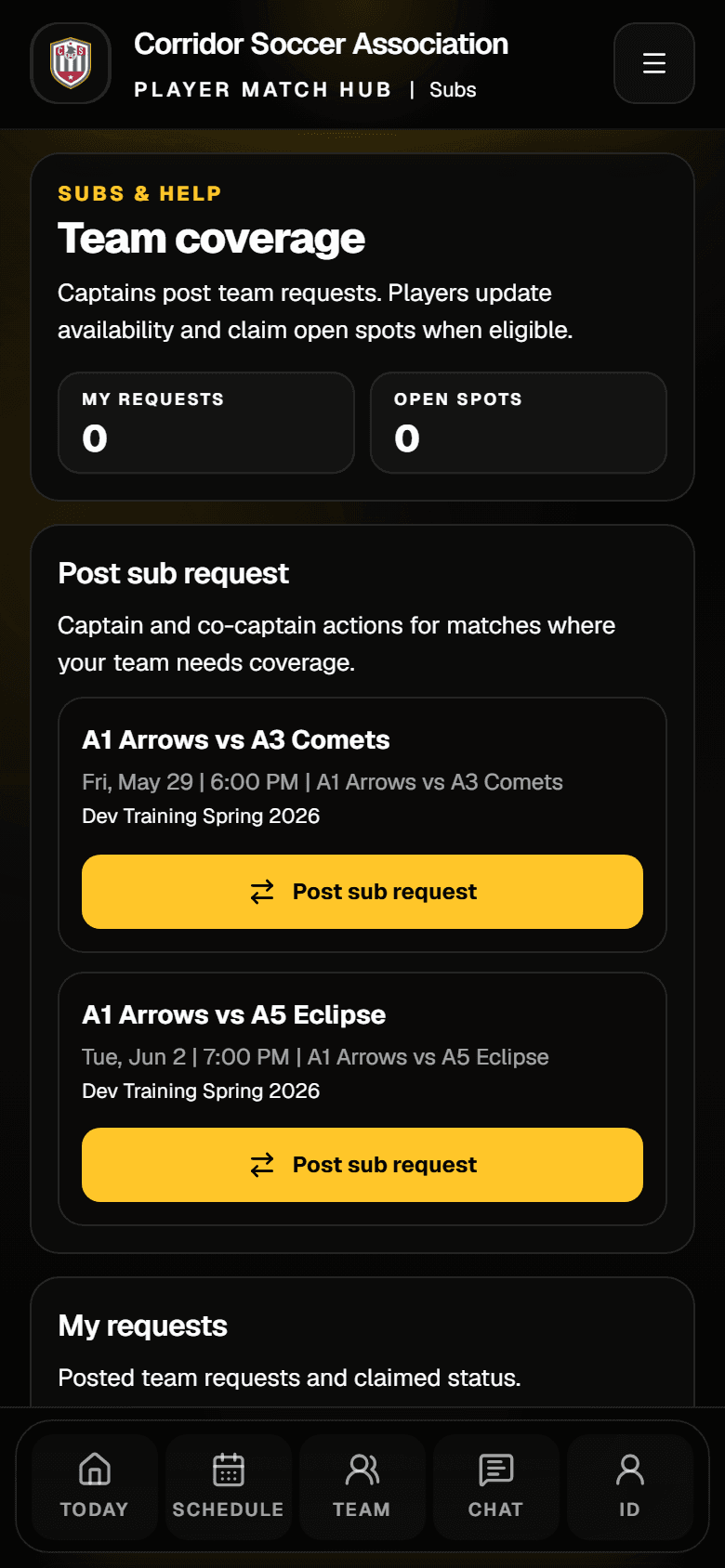
Mobile Subs screen showing the Post sub request button
Subs screen showing upcoming matches and the Post sub request button.
Player workflow

Claim an open sub spot

Players can claim open sub spots when they meet the league rules for that game.

  1. 1Open Subs on your phone.
  2. 2Scroll to Available requests.
  3. 3Review the match, team, and requester.
  4. 4Tap Claim spot.
  5. 5If the button is disabled, read the reason shown on the card, such as insurance required, already rostered, quota exhausted, or not eligible.
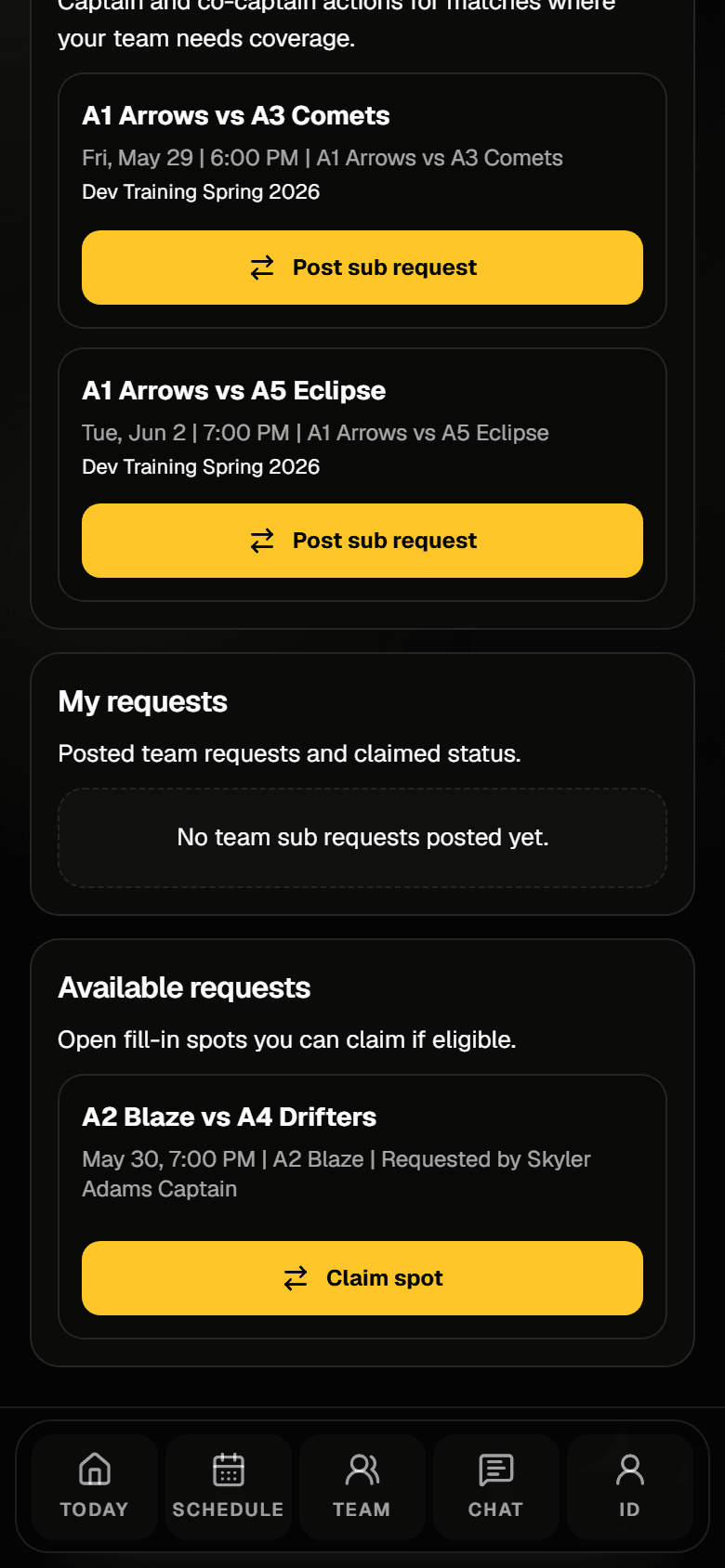
Mobile Subs screen showing a Claim spot button
Available requests section showing an eligible Claim spot button.
Captain workflow

Request a game time change

Captains and co-captains can request a game change from the team match workspace. The game only moves after the required captain approval and availability checks pass.

  1. 1Open Team from the mobile bottom navigation.
  2. 2Tap Matches in the captain workspace tabs.
  3. 3Find the upcoming match you want to move.
  4. 4Tap Request game change.
  5. 5Choose the new date and kickoff time.
  6. 6Use Find open slots to look for available fields.
  7. 7Select a clean slot, add a short reason, then tap Send request.
Clean slot

The app checks whether the requested field/time is available.

Opponent approval

The other captain needs to approve before the move is final.

Not guaranteed

Keep the original game time until the request shows moved.
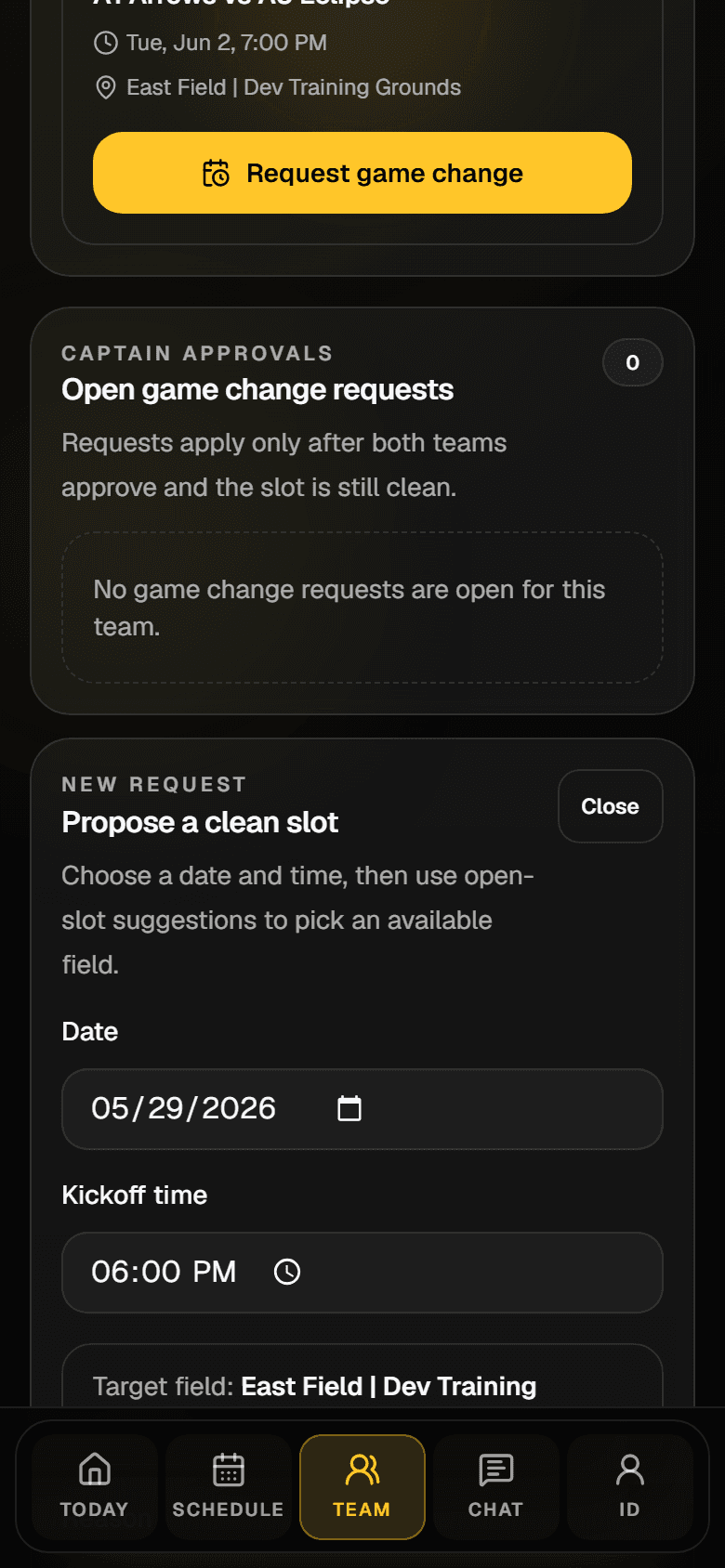
Mobile game change request form
New request form for choosing a date, kickoff time, field, and reason.
Captain approvals

Approve or decline a game change

When another team requests a game change, captains should review it from the same Matches screen.
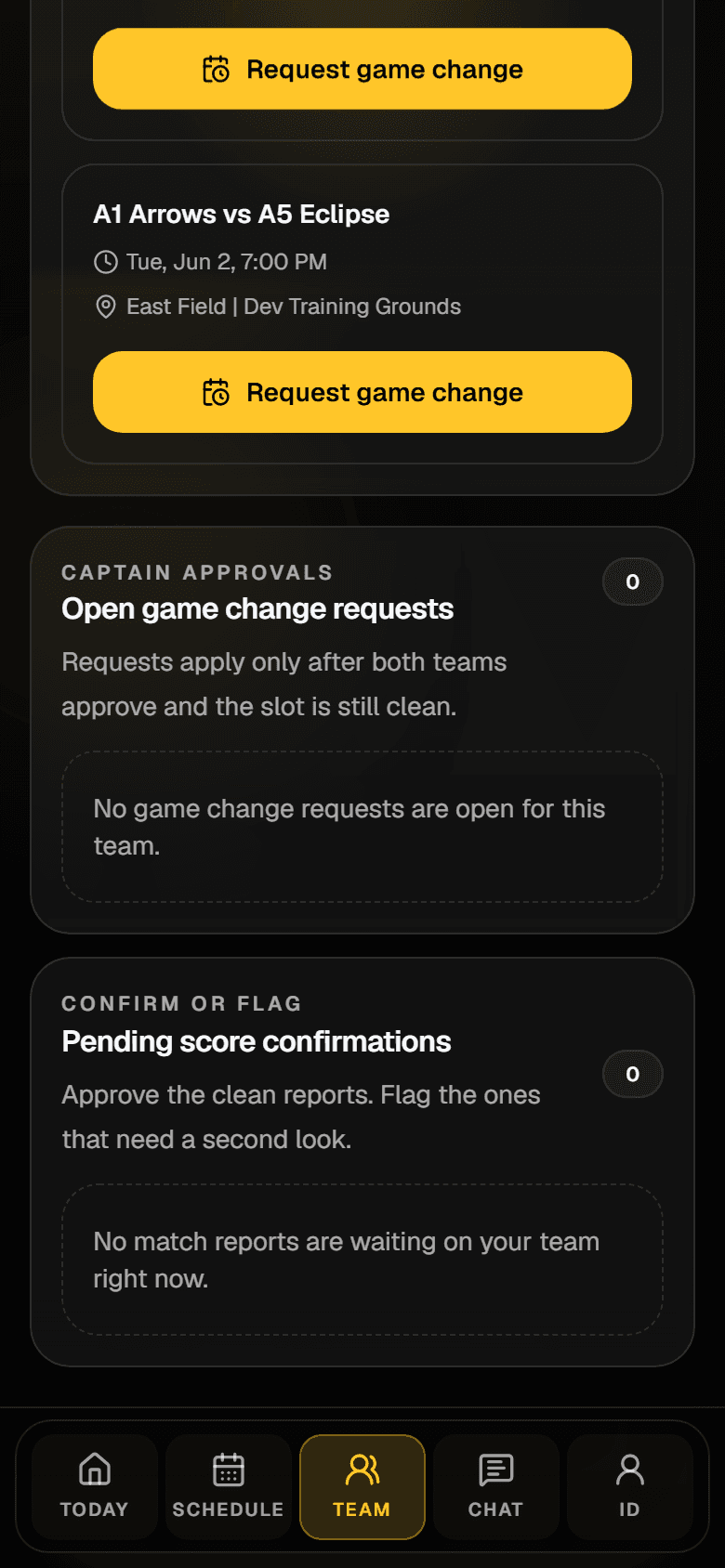
  1. 1Open Team, then Matches.
  2. 2Look under Open game change requests.
  3. 3Review the original match, proposed time, field, and reason.
  4. 4Tap Approve if your team can play the new time.
  5. 5Tap Decline if your team cannot play the new time, and add a short note when asked.
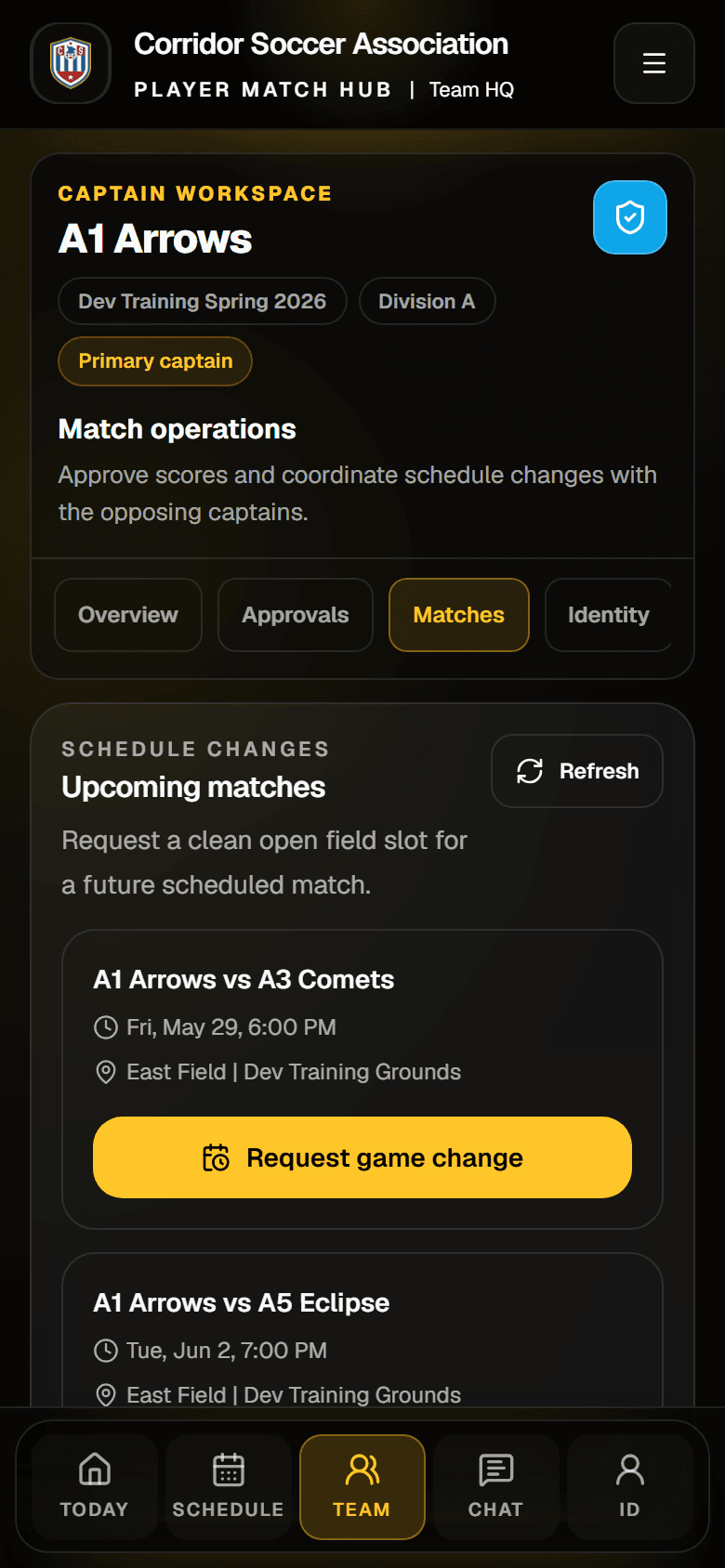
Captain Match Operations page
Captain Match Operations with the Request game change button.
Open game change requests section
Open game change requests section. If no requests are open, the screen says so.

What players should know

Sub requests are for team coverage, not individual attendance notes.
If you cannot make a game, tell your captain and update your availability.
Claiming a sub spot only works when the app says you are eligible.
Game time changes are captain-to-captain requests. Regular players should talk to their captain.
A requested game change is not confirmed until the status shows it has moved.
Open Subs

Post or claim sub requests.

Open Team Matches

Captain schedule and approval tools.

Player Help

Return to the help center.